Your router comes out of the box with an administrator password that ships on the same sticker as the Wi-Fi key. Anyone who knows the model can find that password in a forum thread in under a minute. That's not a scare tactic — it's the single most common way home networks get walked into, and it takes about four clicks to fix.
Key takeaways
- Change the admin password and the Wi-Fi passphrase before you do anything else
- WPA3 if your router offers it, WPA2-AES if it doesn't — never WEP, never TKIP, never "open"
- Turn off WPS. It's the fastest way in and offers almost nothing in return
- Put every smart plug, camera and thermostat on a separate guest network
- Firmware updates are the one maintenance task that actually blocks real attacks
- Audit your device list once a month. Unknown device = change the password today
The first hour: what to do before anything else connects
When I moved into my current flat, the ISP technician handed me a box, plugged it in, and left. Two weeks later I logged into the admin panel out of curiosity and found eleven devices I didn't recognise. Some were my neighbours' phones that had auto-joined an open network I hadn't realised was open. That afternoon I rebuilt the whole thing from scratch.
Here's the sequence I've used on every network since, including my parents' place and a friend's small office. It takes about forty minutes if you don't rush it.
Get into the admin interface
Open a browser and type the gateway address — usually 192.168.0.1 or 192.168.1.1. On Windows, ipconfig in the command prompt shows it next to "Default Gateway." On a Mac it's under System Settings, Network, Details, TCP/IP.
The login screen will ask for credentials. If you've never touched them, they're printed on the router's underside or in the ISP documentation. Default sets like admin/admin or admin/password are still shipped on a shocking number of consumer units, and they're the first thing an automated scanner tries.
Change both passwords — they are not the same thing
This trips people up constantly. Your router has two separate secrets:
- The admin password controls who can reconfigure the router. If someone gets this, they own your network permanently.
- The Wi-Fi passphrase controls who can join it.
Use different values for each. A password manager makes this painless. I use a 20-character random string for the admin login and never type it manually — I paste it from the vault. For the Wi-Fi key, you'll type it on phones and tablets, so something long but typable: four unrelated words strung together beats P@ssw0rd2026 every single time.
Your SSID should not advertise your router model
Default network names look like TP-LINK_4F2A or Livebox-8C91. That tells an attacker exactly which firmware vulnerabilities to look up. Rename it to something neutral that doesn't identify you or your address. Avoid your surname, your flat number, anything that helps someone confirm which door to knock on.
Should you hide the SSID entirely? I used to recommend it. Now I don't. Hiding it breaks some devices, adds zero real protection (the network name is still broadcast in probe requests), and creates a false sense of safety. Give it a boring name and move on.
Encryption and protocol choices that actually matter
In the wireless settings page you'll find a drop-down for security mode. This is where most people leave things on whatever the ISP pre-selected, and where the real gaps live.
| Mode | Crackable by a casual attacker? | Use it? |
|---|---|---|
| Open / none | Trivially — no password at all | Never |
| WEP | Yes, in minutes with free tools | Never |
| WPA (TKIP) | Yes, with effort | No |
| WPA2 (AES/CCMP) | Only via weak passwords or WPS | Acceptable fallback |
| WPA3 | No practical attack on the handshake | Yes, if available |
| WPA2/WPA3 mixed | Same as WPA2 for old devices | Good compromise |
If your router was made in the last three or four years, it almost certainly supports WPA3. Set it to WPA3-only if every device in your home can join. If you have an older e-reader or a cheap smart bulb that refuses to connect, switch to the mixed mode rather than dropping back to WPA2 alone.
Turn off WPS — it's the easiest door to pick
WPS (Wi-Fi Protected Setup) exists so you can join a network by pressing a button or typing an eight-digit PIN. The PIN mechanism has a design flaw that lets an attacker recover it in a few hours. That flaw has been public knowledge for well over a decade and manufacturers still ship WPS enabled by default.
Find it in wireless settings, set it to disabled, save. If a guest needs to join, type the passphrase like a grown-up. The two seconds you save aren't worth the hole.
Firmware: the maintenance nobody does
Every few months a router vendor patches a remote-code-execution bug. These aren't theoretical — routers get recruited into botnets that knock large websites offline, and the entry point is usually an unpatched home device.
Log into the admin panel, find the firmware or system section, check for updates. Some routers do this automatically; turn that on. If your router hasn't received a firmware update in three or more years, that's a strong signal the vendor has abandoned it. In that case, replace it — I know that's an annoying answer, but running abandoned hardware at the edge of your network is like leaving a window open on the ground floor.
Segment your network: the step almost everyone skips
Your router isn't just connecting laptops and phones anymore. It's connecting a doorbell camera, three smart plugs, a thermostat, a robot vacuum, maybe a baby monitor. Each of those devices runs firmware written by a company whose security budget is a rounding error, and each one is a potential foothold.
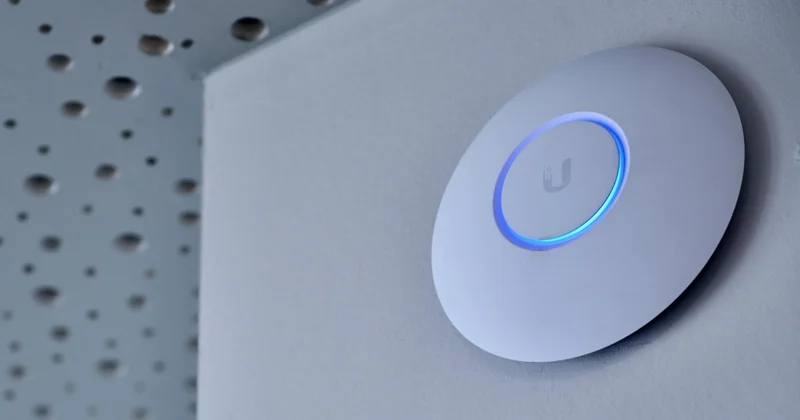
The fix is a guest network. Every router I've configured in the last two years has one, including the ISP-supplied boxes.
- Enable the guest network in the admin panel
- Give it a different name and a different password from your main network
- Make sure "allow guest to access local network" or "client isolation" is set so guest devices can't see your main devices
- Move every smart home device onto it
Now if someone compromises your cheap camera, they're stuck on a subnet with the thermostat. Your laptop, your NAS, your work files stay out of reach. I set this up on my parents' network and their ancient printer complained for a week, then it settled down.
Should you bother with MAC address filtering?
Honest answer: not really. MAC addresses can be spoofed in seconds by anyone who cares enough to try, and maintaining the allow-list is a genuine pain every time a friend visits. It stops the curious teenager next door and nothing else. Spend that energy on WPA3 and a guest network instead. In my opinion, MAC filtering is the security theatre of home networking — it looks thorough and does very little.
Auditing your network after setup
Configuration isn't a one-time event. Devices join, guests connect, and occasionally something shows up that shouldn't.
How do I find unknown devices on my Wi-Fi?
Your router's admin panel has a client list, usually under "connected devices," "DHCP clients," or "attached devices." Count what's there and match each entry to something you own. Most routers show a hostname, which helps — iPhone-de-Marie is obvious, ESP_4A9F is probably a smart plug.
If you find something you can't identify, don't panic. First, unplug devices one at a time and refresh the list to see what disappears. If it persists with everything you own powered down, change your Wi-Fi passphrase immediately and set the network to forget all devices. On my own network I check this list roughly once a month, and in three years I've caught exactly one unknown device — a neighbour's laptop that had joined before I locked things down.
What is my network exposing to the internet?
Two things are worth checking. First, remote administration: some routers expose the admin panel to the internet by default. Find the setting labelled "remote management," "web access from WAN," or similar, and turn it off unless you specifically need it. Second, UPnP — the protocol that lets devices open their own ports. It's convenient for game consoles and a liability everywhere else. Disable it and open ports manually if you actually need one.
If you want to verify from outside, use a port-scanning service while connected to mobile data and point it at your home IP. You should see nothing responding. If ports are open that you didn't open yourself, you found your problem.
When to replace the hardware instead of configuring it
Not every network can be saved with settings. Three situations justify new hardware:
- The router only supports WPA2 and mixed mode keeps dropping your newest devices
- No firmware update has appeared in three years or more
- You have more than about thirty connected devices and the router starts dropping connections
On that last point — a mesh kit is the right call for anything above roughly 120 square metres or with thick interior walls. A single router broadcasting from a hallway cupboard will leave dead zones, and dead zones tempt people into range extenders, which halve your throughput and often create a second, weaker network with the same name. Mesh handles roaming properly. I replaced a single-router setup in a 140 m² flat with a three-node mesh, and the difference in the far bedroom went from unusable to full bars.
Wi-Fi 6 is the sensible baseline in 2026. Wi-Fi 6E adds the 6 GHz band, which is genuinely less congested in apartment buildings — worth the premium if you live somewhere with fifteen visible networks from your kitchen window. Wi-Fi 7 is available and fast, but unless you have devices that support it, you're paying for headroom you won't use yet.
The habits that keep it secure
Configuration gets you to a good starting point. What keeps you there is boring and repetitive.
Check the client list monthly. Apply firmware updates when they appear, not "later." Never share your main network password with visitors — the guest network exists for exactly that. If a device gets retired, remove it from any allow-list and change the Wi-Fi key if it had access to sensitive data.
And the one people resist: when a friend asks for your Wi-Fi at a dinner party, hand them the guest password. It costs you nothing and keeps your NAS, your printer, and your work laptop off a device you don't control. That single habit has saved me more headaches than any encryption setting.
The uncomfortable truth about home network security is that the threats are rarely sophisticated. They're default passwords, abandoned firmware, and a WPS button someone pressed once in 2019 and forgot about. Fix those three things and you're ahead of most households on your street — which, frankly, is the bar that matters.